DocsSignatures
Assigning signatures to users
Users come from your directory; the live template applies to all of them. What each mailbox gets, and what happens to the ones with no profile.
Updated August 29, 2026
There is no per-user assignment step. A signature is applied to a message when the sending address matches a mailbox in your synced directory, and the template used is the one that is live for that mailbox's company. Design decides the look; the directory decides the data.
The directory
Users lists every mailbox synced from your tenant — Microsoft Entra or Google Workspace — with the fields RubySig reads for the signature: name, title, department, email, user principal name, phone, and any send-as aliases.
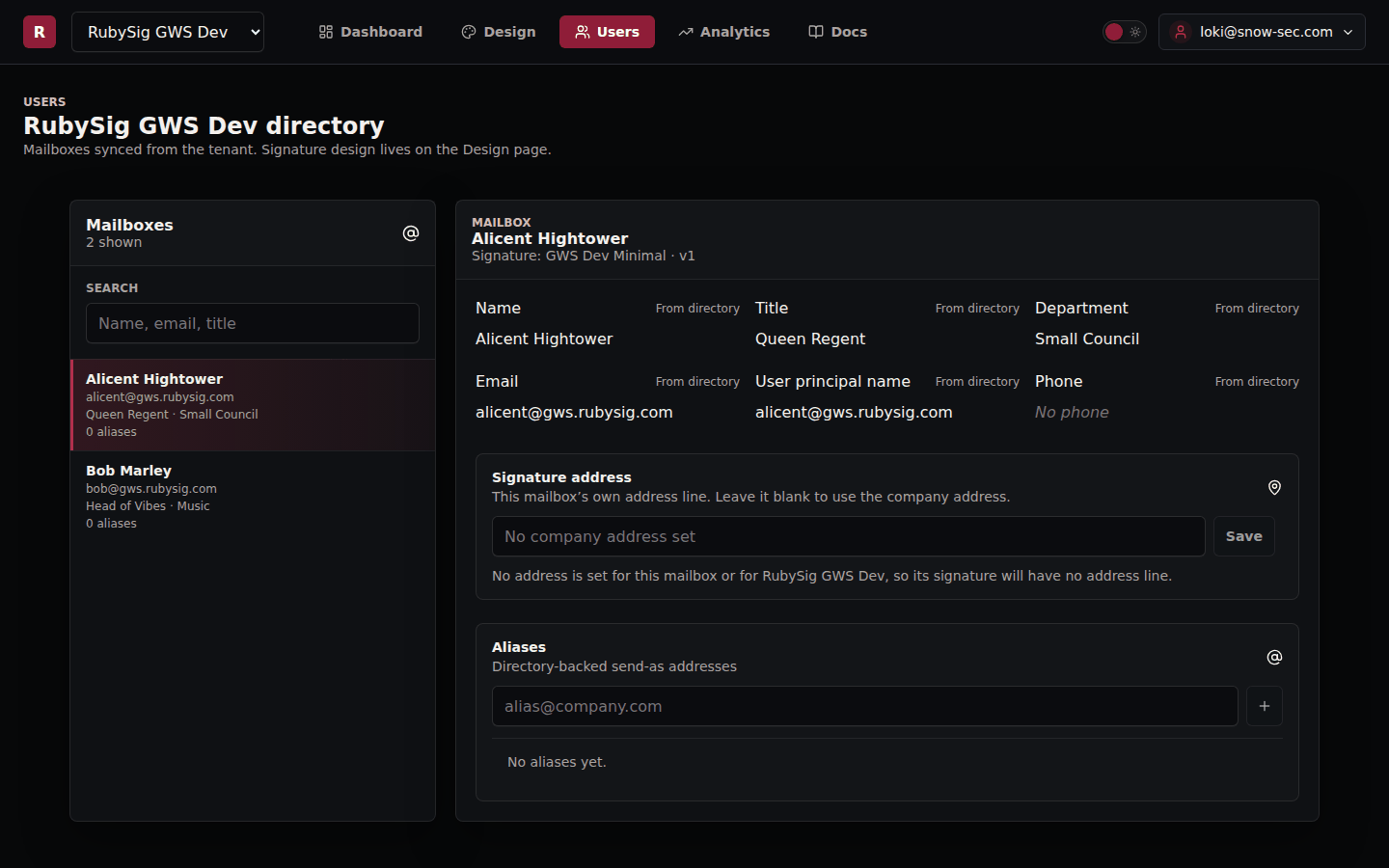
Fields marked From directory are read-only in the portal on purpose: the tenant directory is the source of truth, so a title changed in Entra or the Google Admin console flows through on the next sync, and nobody maintains a second copy.
Two things are set per mailbox in the portal:
- Signature address — an address line for this mailbox only, for people who work from a different office than the company address. Leave it blank to use the company's.
- Aliases — send-as addresses this mailbox uses. A message sent from an alias is matched to the mailbox and gets its signature.
Which template a user gets
The template that is live for the user's company. An account with several companies (brands) has a live template per company, and users are placed by the company their directory record belongs to. To give a group of people a different look, put them under their own company.
Mailboxes with no profile
Mail from an address that matches no directory record — a shared mailbox, a distribution list, a service account, a user added since the last sync — is still handed back and delivered, unchanged. RubySig never blocks or alters mail because it has nothing to stamp; the relay notes it so the gap is visible.
If a mailbox should carry a signature and does not:
- Check it appears under Users. If not, it has not synced — a new mailbox appears after the next directory sync.
- Check the address the mail was sent from is the mailbox's primary address or one of its listed aliases.
- Check the mailbox's company has a template live.
Multiple companies
The company selector at the top of the portal switches everything — users, design, billing — to one company. Directory records are attributed to a company by their domain, so a tenant that sends from two brands' domains appears as two companies with their own templates.