DocsSignatures
Salesforce
Pull titles, phone numbers and departments from Salesforce into signatures, and report banner clicks back into Salesforce as campaigns.
Updated August 30, 2026
RubySig connects to your Salesforce org in two directions:
- Salesforce → signatures. Each person's Title, Phone (or Mobile) and Department from their Salesforce user record go into their signature, ahead of what the mail directory says. Sales teams keep those fields current in the CRM long after the directory has gone stale.
- Signatures → Salesforce. With Marketing Core Analytics, every signature banner that links somewhere becomes a Campaign in Salesforce carrying its click total to date, so the marketing team sees signature campaigns where they see every other campaign.
Both use one connection that a company admin approves once.
Note: RubySig keeps only a refresh token for the connection, encrypted, and never your Salesforce password. It reads user records and writes campaigns — nothing else. Disconnecting revokes the token and clears every Salesforce-sourced value from your signatures at once.
Connect
- In the portal, open Integrations and click Connect Salesforce. If your org uses a My Domain, or you want to connect a sandbox, enter that login host first (for example
acme.my.salesforce.comortest.salesforce.com). - Sign in to Salesforce as an administrator and click Allow.
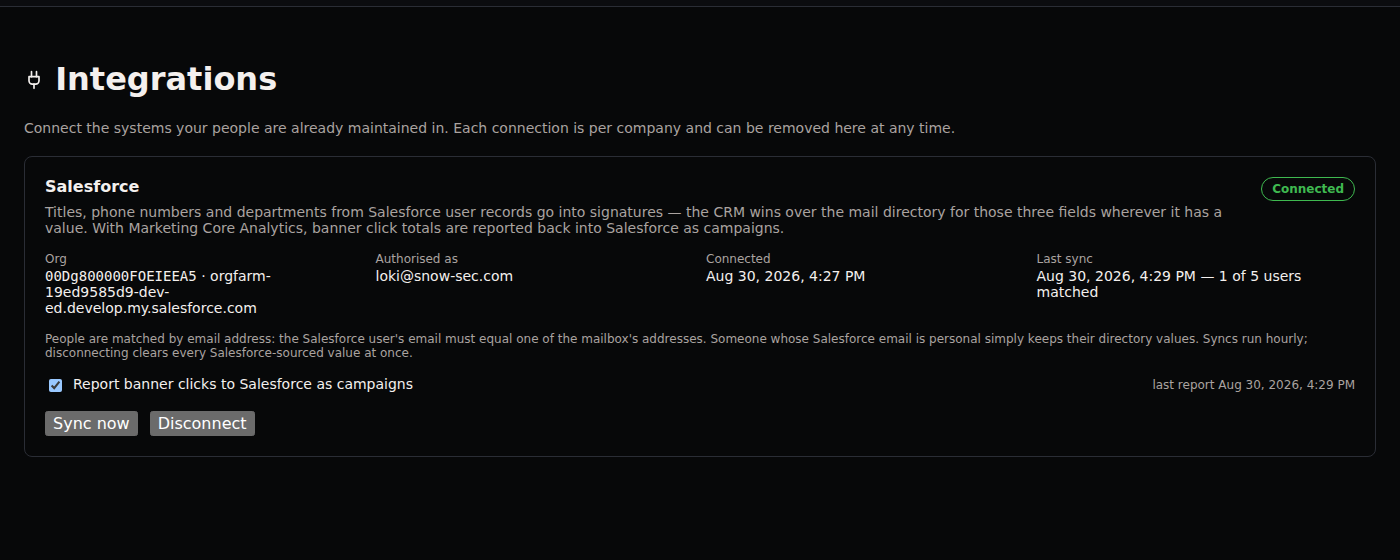
- You are returned to the portal. The first sync runs immediately and the card shows how many Salesforce users matched a mailbox.
How people are matched
By email address, exactly. A Salesforce user is matched to a mailbox when the user's Email equals one of the mailbox's addresses — its primary address or any alias. Nothing fuzzier: a wrong guess would put one person's title on another person's mail.
Someone whose Salesforce email is not one of their work addresses does not match, and their signature simply keeps its directory values. The Integrations card lists unmatched users after each sync so you can fix the email in Salesforce.
Syncs run every hour. Sync now runs one on demand.
What wins
For title, phone and department: the Salesforce value when it is set, otherwise the directory value. An empty Salesforce field does not blank anything. Phone uses the user's Phone, falling back to Mobile, and is formatted for display the same way directory numbers are.
Name, email address and company details are never taken from Salesforce.
Campaigns (Marketing Core Analytics)
Give a banner a link in Design → Banner link. Clicks on that banner in delivered mail are counted — a number per banner per day, and nothing else: RubySig records no recipient, address, device or cookie.
On the Integrations card, turn on Report banner clicks to Salesforce as campaigns. RubySig creates one Campaign per linked banner, named RubySig · <template name>, of type Email, and keeps its description updated with the click total and the click rate against signatures sent. Existing campaigns are updated in place; renaming a template does not create a duplicate.
Reporting runs hourly with the sync. Turn it off to stop updating; the campaigns stay in Salesforce as history.
Caution: Salesforce only lets Marketing Users create campaigns. The administrator who connects RubySig needs the Marketing User checkbox on their Salesforce user record, or the report fails with "entity type cannot be inserted: Campaign". Tick it, then turn reporting off and on again.
Tip: Campaigns use standard fields only, so nothing has to be installed in your org. If you want the click count in a dedicated field for reports, add a number field to Campaign and tell us its API name.
Disconnect
Integrations → Disconnect. The token is revoked at Salesforce, the connection is removed, and every Salesforce-sourced title, phone and department is cleared immediately — signatures fall back to the directory on the next message.
Troubleshooting
| What you see | Cause | Fix |
|---|---|---|
| "0 of N users matched" | Salesforce emails are not the work addresses the relay knows. | Compare a user's Salesforce Email with their address on the Users page; fix it in Salesforce and sync again. |
| A person's title did not change | Their Salesforce user has no Title, or the email did not match. | Set the field in Salesforce; check the unmatched list on the card. |
| "Salesforce token: invalid_grant" | The refresh token was revoked in Salesforce (app removed, or the authorising user deactivated). | Disconnect and connect again as a current administrator. |
| Campaign reporting is greyed out | The account is not on Marketing Core Analytics. | It is part of Crown — see Pricing. |
| "entity type cannot be inserted: Campaign" | The connecting user is not a Marketing User in Salesforce. | Tick Marketing User on their user record; toggle reporting off and on. |