DocsSignatures
Banner campaigns
A time-boxed image under every signature — an event, a launch, a notice — designed in the portal and taken down on a date.
Updated August 29, 2026
A banner is a campaign image that appears beneath the signature on every stamped message for a company, for as long as you want it there. It is designed and scheduled in the portal; nobody in your organization has to do anything to their mail client.
Designing a banner
Open Design and switch to the Banner tab. You can build one from a layout — headline, sub-line, call to action, brand colour — or upload an image you already have. Animated GIFs work.
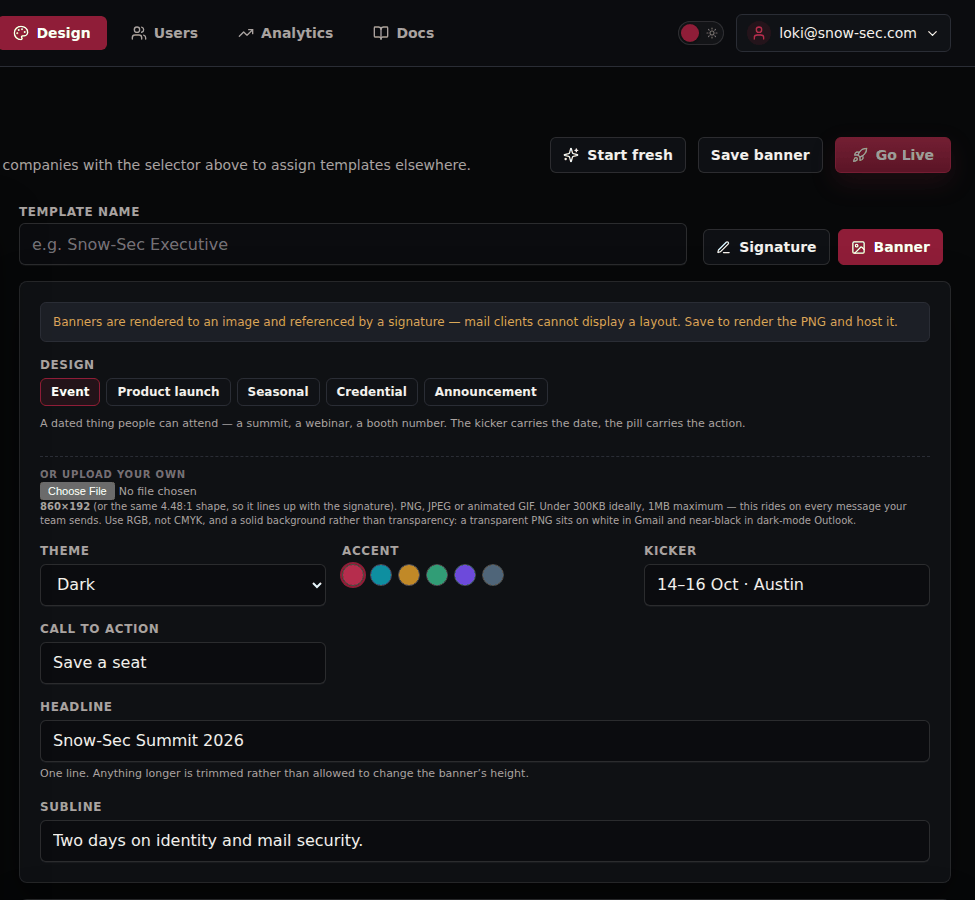
The banner is linked, so the whole image is a click target for the destination you set.
Where it sits
Once a banner exists it appears on the Signature tab under Banner, where you choose its position — above or below the signature card — and whether it is on. The signature preview shows both together.
Click tracking
Clicks on the banner are counted, so you can see what a campaign did. The per-day view of stamps, signatures and active mailboxes — Marketing Core Analytics — is part of the Crown tier; the banner click count itself is available on every tier that includes campaigns.
Taking it down
Turn the banner off on the Signature tab, or replace it with the next one. The change applies from the next message stamped; mail already sent keeps the banner it was sent with, as it should.
Tip: Design the next banner before the current campaign ends. Switching is one save, so there is never a gap or an out-of-date promotion in flight.
Banner campaigns are included in the Ruby and Crown tiers — see Pricing.